Nativium icon

What your Mac is missing.
Free, in one native app.

Nativium adds what macOS does not have: clipboard history with favourites, new files straight from the clipboard in Finder, archive browsing before you unpack, and batch converters for video, audio, MP3 and images. And it keeps your Mac healthy — scanning, cleaning and a Repair Center for common problems — never changing anything without showing you first.

Download for Mac
Free · macOS 14 Sonoma or later · Apple Silicon & Intel · no account
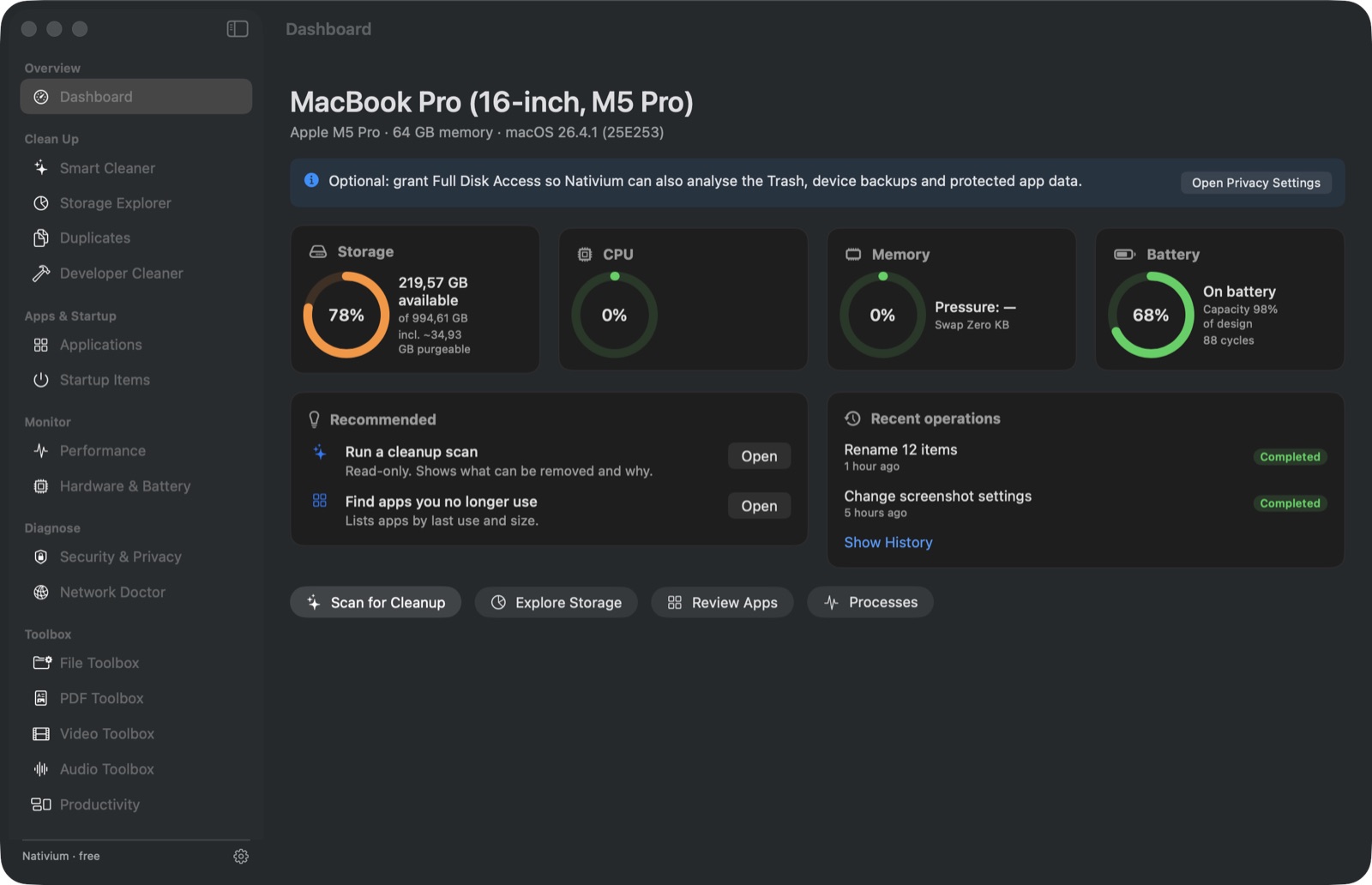
Nativium dashboard: storage, CPU, memory and battery at a glance
Scans only readLooking never changes a file. Nothing happens until you review and confirm.
Every change previewedEach item shows why it is suggested, its size and its risk. Try a dry run first.
Undo from HistoryRemoved items go to the Trash or a quarantine and can be restored.
No telemetryNo analytics, no account, no ads. Nativium works offline.
Adds to macOS

Features macOS should have had all along.

They become part of your Mac: in the menu bar, in Finder's right-click menu, and as the app that opens your archives.

Keeps your Mac healthy

Scan, clean, repair — explained and undoable.

Archive browsing

Look inside an archive before you unpack it.

macOS's Archive Utility unpacks everything the moment you double-click. With Nativium, a ZIP, 7z, RAR or TAR archive opens in its own window showing folders, sizes and dates — nothing is extracted until you ask. Quick Look any file inside.

  • Extract everything or only what you select, password-protected archives included.
  • Create ZIP, 7z, RAR or TAR.GZ archives — one for everything, or one per item — with an optional password.
  • Make it your default archive app, or keep it as one choice in Finder's Open With.
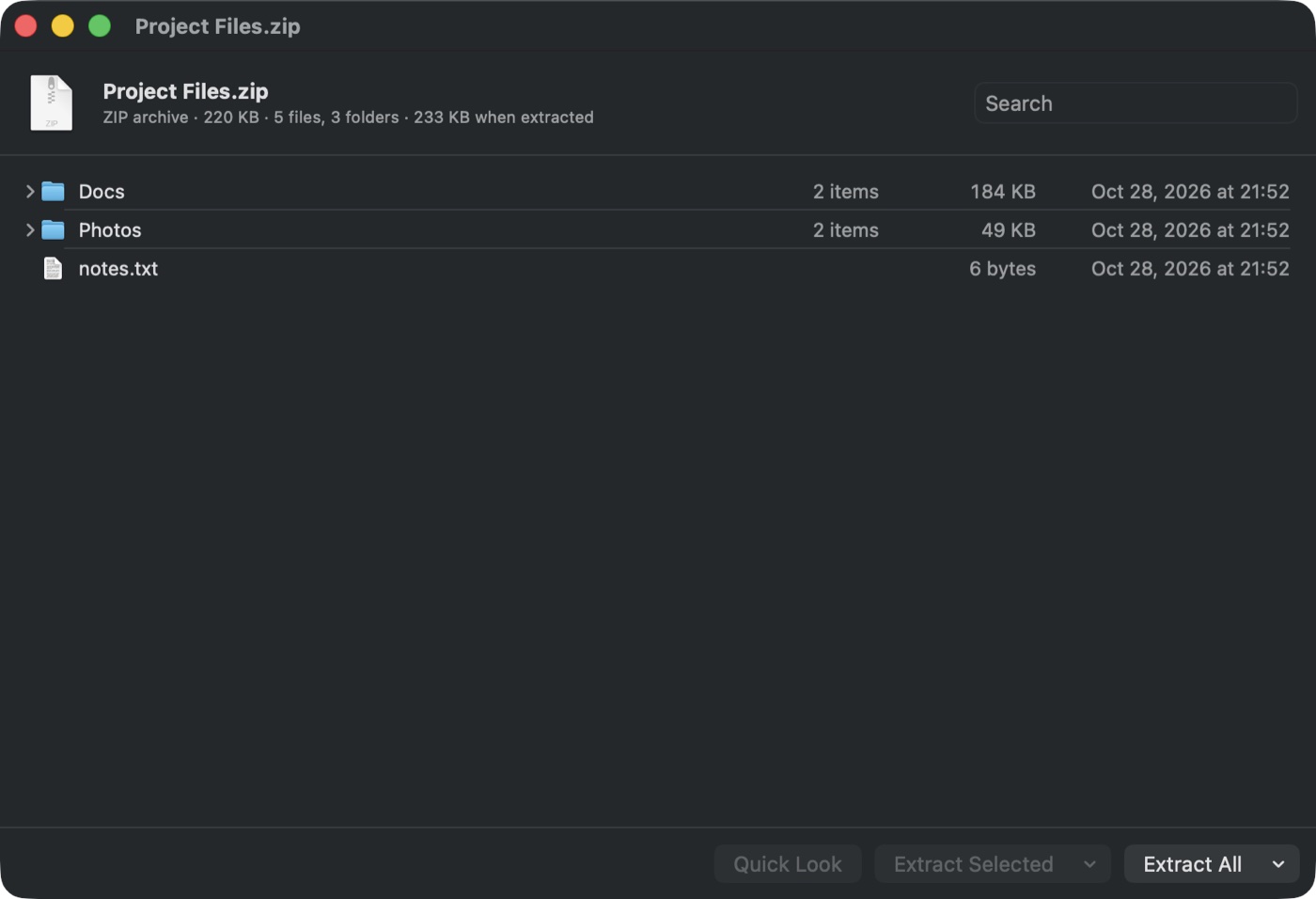
Archive preview window listing folders and files inside a ZIP
Clipboard

A clipboard that remembers — and makes files.

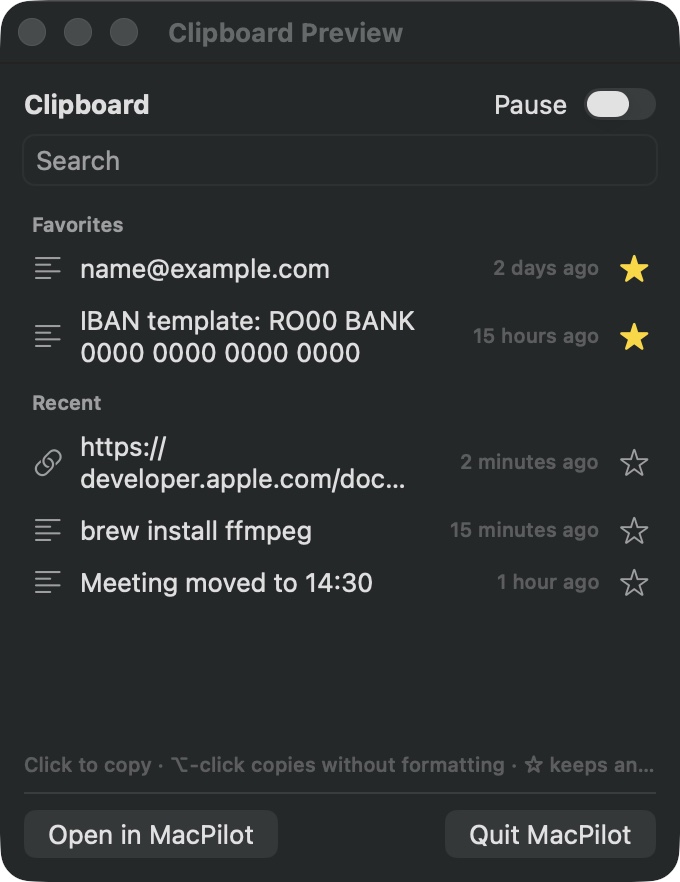
macOS forgets what you copied the moment you copy something else. Nativium does not: a clipboard icon next to the clock keeps your history, ready to paste again.

  • Clipboard history — text, links and images, searchable, one click to copy back.
  • Favourites — star an item and it stays at the top of the list, always.
  • Save Clipboard Here — right-click any folder in Finder and the copied image (PNG, JPEG, HEIC) or text becomes a new file there. Nothing is overwritten.
  • Private — passwords and items from password managers are never recorded, and the history never leaves your Mac.
  • Also included: window snapping with keyboard shortcuts and screenshot settings in one place.
Clipboard history panel with starred favourites
Batch video converter

Convert a whole folder of videos, your way.

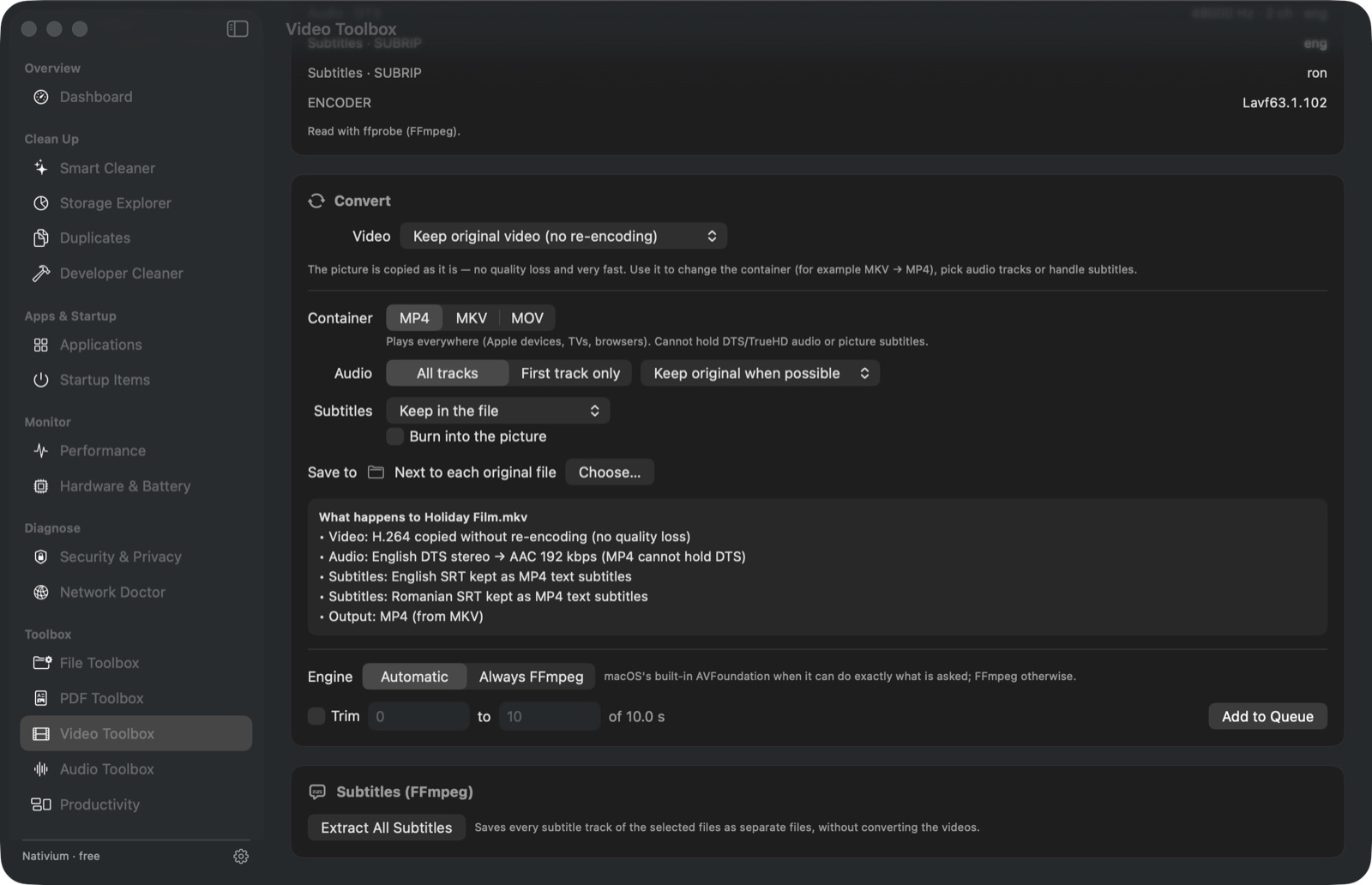
Drop files or entire folders, choose once, and Nativium converts them one after another. MKV, MP4, MOV and more — and before you start you see what will be done with every track.

  • Keep the original picture (no quality loss) or re-encode with the Mac's hardware encoder.
  • Fit a maximum file size — enter 25 MB and Nativium picks the bitrate and resolution.
  • Subtitles kept, saved as separate files, or burned into the picture.
  • Choose the container, the audio tracks and the output folder.
Video Toolbox showing container, audio and subtitle choices and a per-track plan
Batch audio & MP3

Music files, tidy at last.

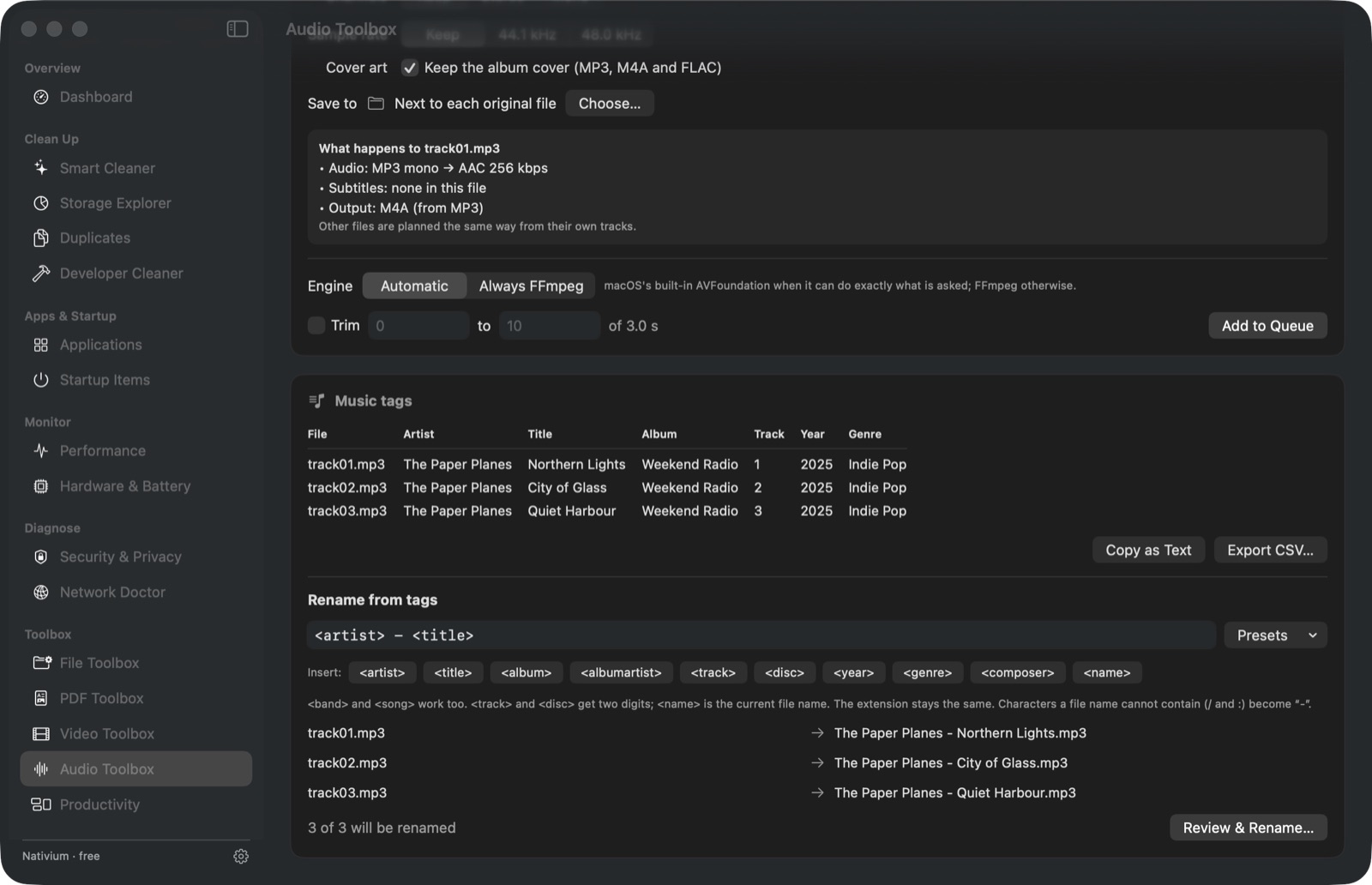
Convert any number of songs to MP3, AAC, Apple Lossless, FLAC, WAV or Opus with the bitrate, channels and album cover you want.

  • MP3 tags — artist, title, album, track, year and genre in one table, exportable as CSV.
  • Rename from tags — <artist> - <title> and a messy folder is sorted. Previewed, and undoable.
  • Add a whole music folder: every audio file inside is picked up.
Audio Toolbox with a music tag table and rename preview
Batch image converter

Hundreds of photos, converted in one go.

Drop images or folders in the File Toolbox, pick a format and a size, and get new files next to the originals or in a folder you choose. Originals are never modified.

🔁

Any format to any format

HEIC, JPEG, PNG and TIFF — for example iPhone photos to JPEG for sharing.

📐

Resize

Set the longest side in pixels and the JPEG/HEIC quality. Nativium shows how much smaller each file got.

📍

Remove metadata

Strip location and camera details before you post or send photos.

📄

PDFs too

Merge, split, compress, OCR, watermark and password-protect PDFs in the PDF Toolbox.

Scan & clean

Free gigabytes — and know exactly what you are deleting.

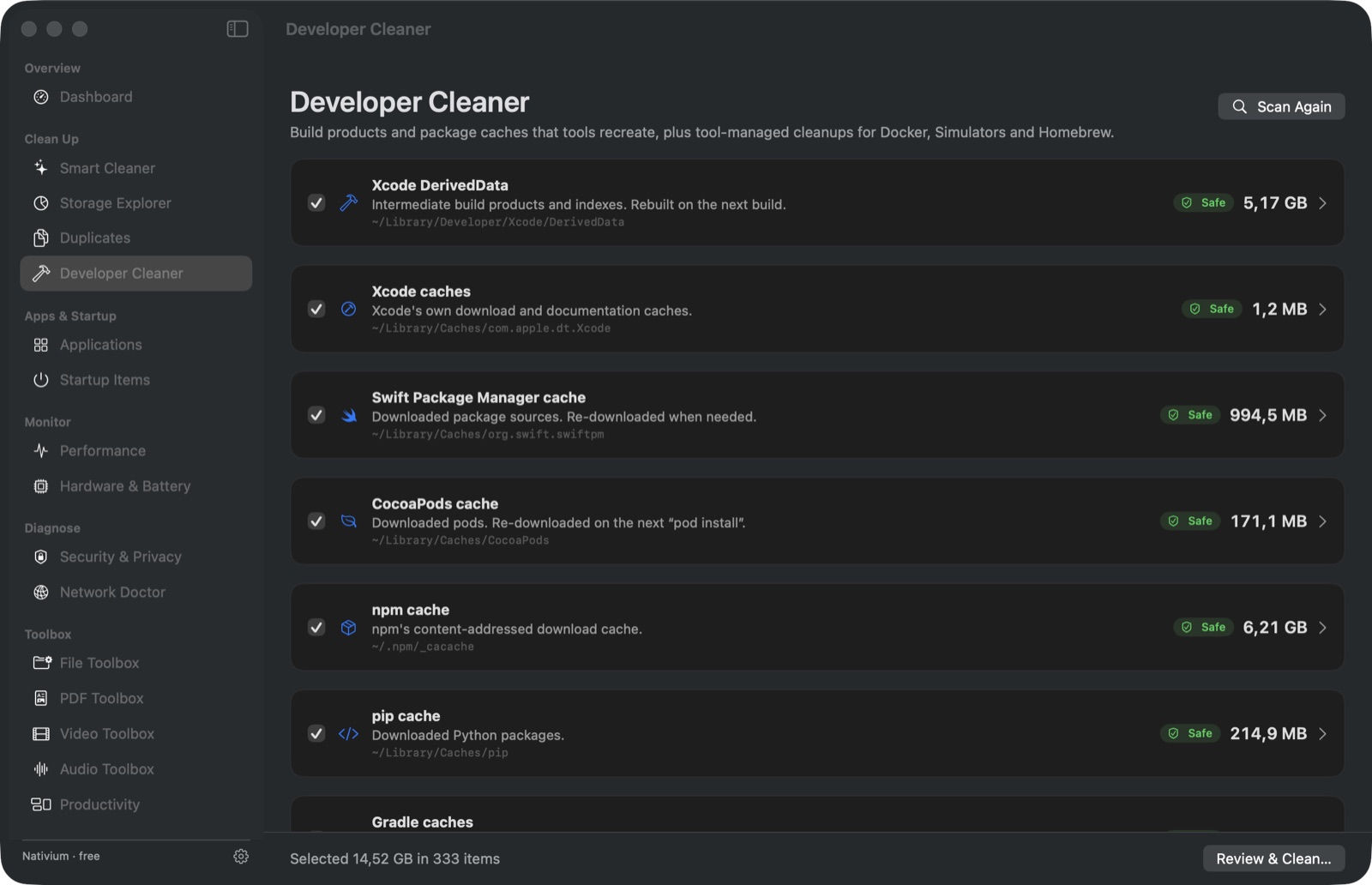
Nativium scans what macOS and your apps leave behind and tells you, in plain language, what each thing is, how big it is and how safe it is to remove.

  • Smart Cleaner — caches, logs, crash reports, old downloads, installers and leftovers of removed apps.
  • Storage Explorer — a map of your disk that counts APFS clones and cloud files correctly.
  • Duplicates — byte-identical files, and it never removes every copy.
  • Developer Cleaner — Xcode, Simulator, npm, pip, Gradle, Homebrew and Docker caches.
  • Undo — everything removed goes to the Trash or a quarantine and can be restored from History.
Developer Cleaner listing Xcode, npm and package caches with sizes
Repair Center

Something is broken? Nativium finds out why — and fixes it.

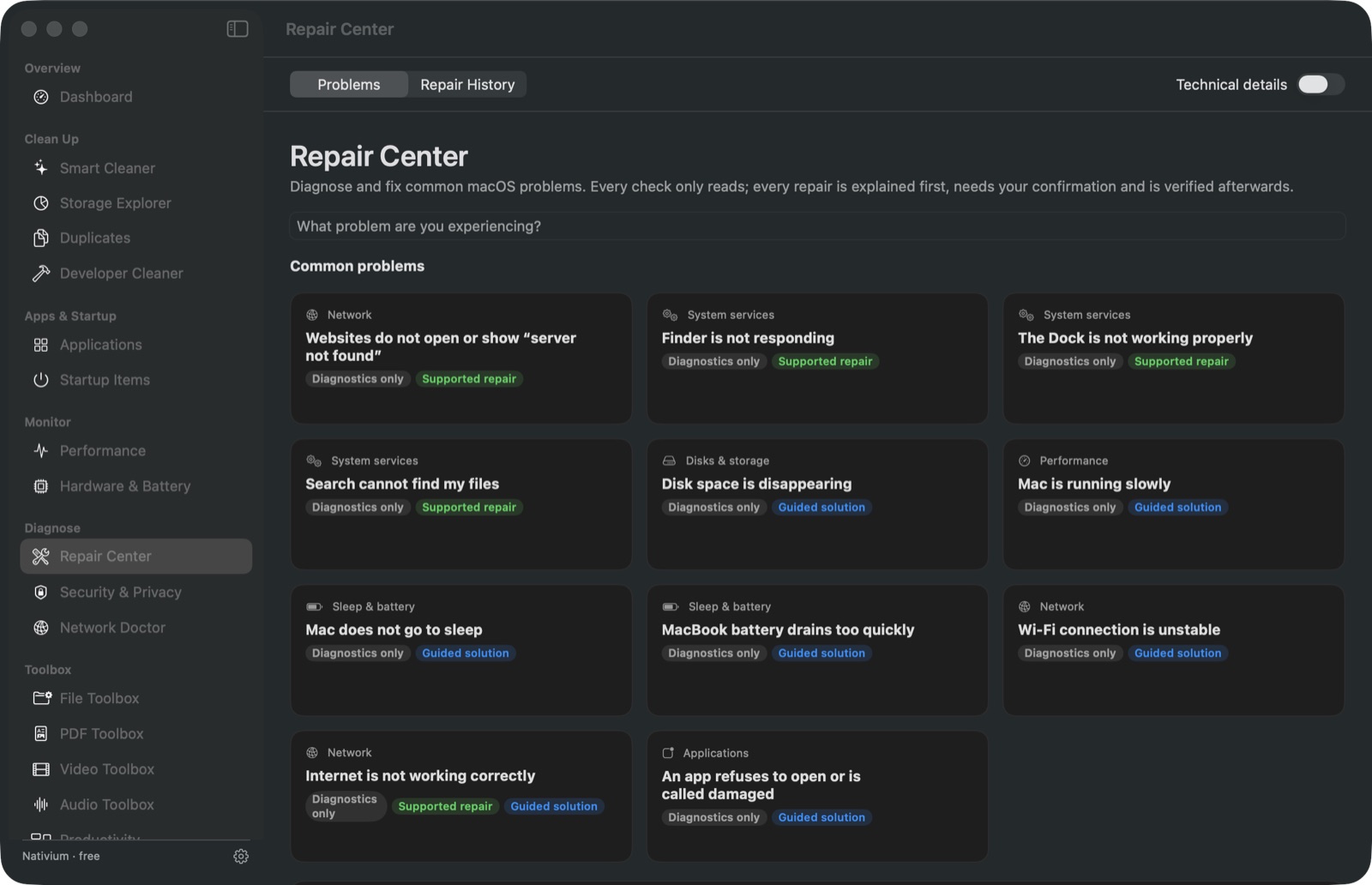
“Finder is not responding”, “search cannot find my files”, “my Mac does not go to sleep”, “no sound”, “the printer is stuck” — pick the problem and Nativium runs real diagnostic checks, shows the likely causes and offers the repair that macOS supports.

  • 37 common problems — Finder, Dock, Spotlight, Quick Look, sleep, Wi-Fi and DNS, audio, Bluetooth, printing, disks, Time Machine and cloud storage folders.
  • Safe repairs — restart Finder or the Dock, reset DNS cache, rebuild the Spotlight index, clear the Quick Look cache, cancel stuck print jobs, verify a disk.
  • Explained first, verified afterwards — what runs, what is interrupted, whether it needs your password, and whether it actually worked.
  • Copy Terminal Command — prefer to do it yourself? Get the exact command.
Repair Center listing common problems with their diagnostics and supported repairs
Insights

Ask why your Mac is slow. Get facts, not guesses.

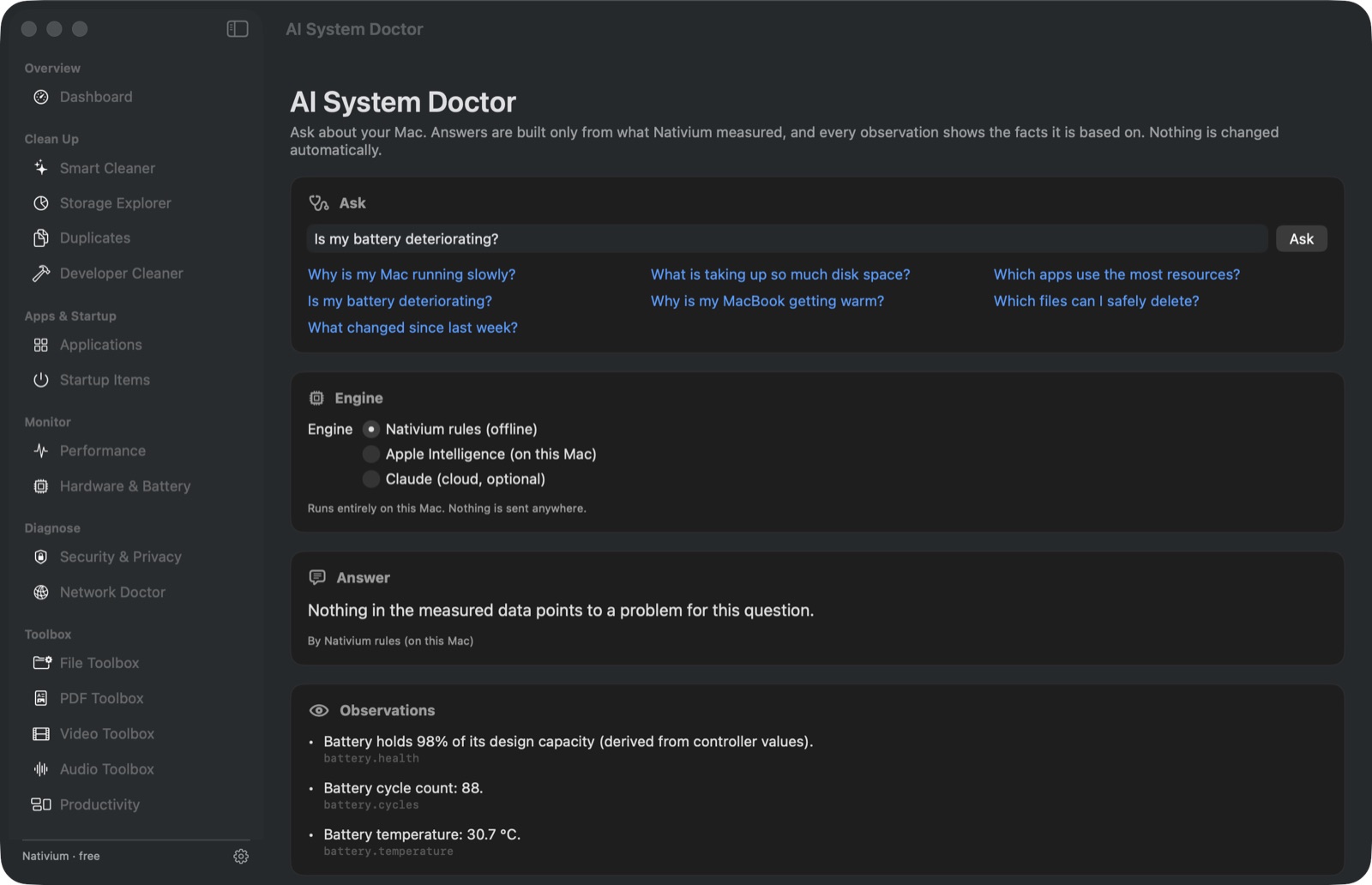
The AI System Doctor answers from what Nativium actually measured — memory pressure, swap, busy processes, disk space, battery health — and shows the fact behind every statement. It works offline; Apple Intelligence or Claude can be used if you choose.

  • System Timeline — disk and battery history, apps installed and removed, new background services.
  • Automation — rules like “tell me when free space drops below 20 GB”. They notify; they never delete.
AI System Doctor answering a question about battery health with the measured facts
And more

Everything else you would expect.

🧩

Applications

Size, last use, Apple Silicon or Intel, signature check — and complete uninstall with leftover files.

⏻

Startup items

See every login item and background service, and switch them off reversibly.

📈

Performance

CPU per core, memory pressure, swap, disk and network, and the processes behind them.

🔋

Hardware & battery

Model, chip, displays, USB devices, battery cycles and real capacity.

🛡️

Security & privacy

FileVault, firewall, Gatekeeper, SIP and XProtect, checked and explained.

🌐

Network Doctor

Wi-Fi details, DNS comparison, ping, traceroute and which app uses which connection.

🗂️

File Toolbox

Batch rename, checksums, file comparison and file metadata.

Install

Two minutes, once.

Download and open the disk imageNativium.dmg — one download for Apple Silicon and Intel Macs.
Drag Nativium to ApplicationsThen eject the disk image.
Open it the first time from System Settings Nativium is not yet notarized by Apple, so the first launch shows “Apple could not verify Nativium is free of malware”. Click Done, open System Settings › Privacy & Security, scroll down and click Open Anyway next to Nativium, then confirm. You only do this once.

Prefer Terminal? xattr -dr com.apple.quarantine /Applications/Nativium.app removes the download flag so Nativium opens normally.

Optional helpers

Nativium uses what macOS provides. For a few extras it can install free tools with Homebrew after you confirm: FFmpeg (MKV and other video formats, subtitles, MP3/FLAC/Opus), 7-Zip (password-protected 7z) and RARLAB rar (creating RAR archives; shareware).

Questions

Good to know.

Is it really free?

Yes. Every feature is included, with no trial, account, subscription or ads.

Will it delete something I need?

Nothing is changed until you review the list and confirm. System files are protected and never offered. Most removals go to the Trash or a quarantine and can be restored from History.

Does it need my administrator password?

No. Nativium never asks for it and never bypasses System Integrity Protection. The one exception is clearing the DNS cache, where macOS itself asks for it in its own window — Nativium never sees it. Full Disk Access is optional and only lets it analyse more places.

Does it send my data anywhere?

No. There is no telemetry. Nativium connects to the internet only when you ask it to — a network test, installing an optional tool, or the Claude engine of the AI Doctor after you consent.

Which Macs are supported?

macOS 14 Sonoma or later, on Apple Silicon and Intel Macs.

Get Nativium

Free for everyone.

Download for Mac

To know how many people download Nativium, the download records the date, the version, the country and your IP address with its last part removed. The country is looked up on our own server; nothing is sent to anyone else.